
How to Add a Resume to LinkedIn (Featured vs Applications)
How to add a resume to LinkedIn: Featured on the profile versus a resume stored for applications, what each file does not do, and how to update or remove the one you mean.
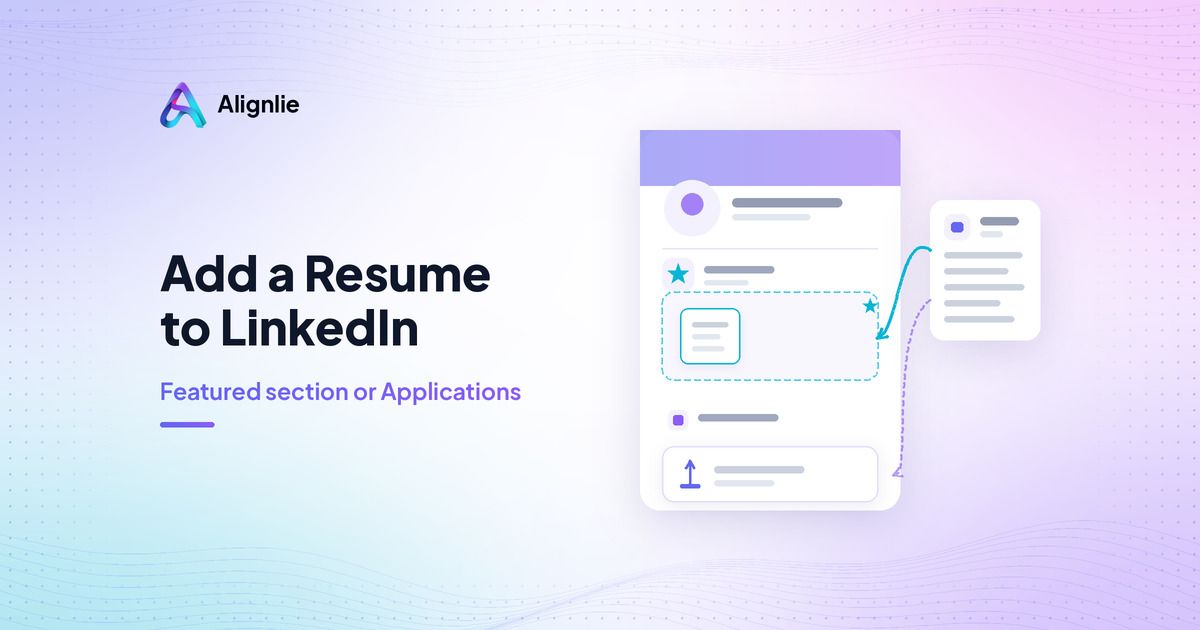
A resume file on LinkedIn can land in two different places, and those places do not do the same job. How to add a resume to LinkedIn starts by picking the destination: a document in Featured on your profile, or a resume stored for applications. People who can view the profile may open the Featured file. Applications, and LinkedIn’s tools that reuse a saved resume, use the other file. One upload does not cover both.
LinkedIn’s upload help, Teal’s guide, and Jobscan’s upload guide all separate those paths. This page stops at the file. It does not teach profile writing.
How to add a resume to LinkedIn: two destinations
Decide who should see the file before you click anything. Jobscan, Teal, StylingCV, and LinkedIn Help describe the same split. Menu labels differ. The destinations do not.
Featured, who sees it. The file sits on your profile. Jobscan says someone viewing you can download it. Teal says people who can view that profile content may open it, and that this media may also be visible off LinkedIn. LinkedIn Help says viewers can download a resume you showcase on your profile.
Featured, what it does not do. It is not the resume stored for applications. LinkedIn Help says you cannot use the profile upload for job applications. Teal says a Featured file cannot be selected for Easy Apply, and a saved application resume is not published in Featured on its own. Do not assume the two files sync.
Application file, who sees it. You store it from Job Application Settings, or from Jobs, then Preferences, then Resumes and application data. LinkedIn keeps your four most recent uploads so you can reuse them. Teal says that saved file is not shown on your profile by itself. Jobscan says nobody sees it until you attach it, and an Easy Apply file goes to that employer.
Application file, what it does not do. It does not become a Featured document, and it does not rewrite your profile headline or About. Teal also describes a separate prompt that can suggest profile fields from a resume. That prompt is not Featured and not the application file. This page does not walk through it.
Add resume to LinkedIn Featured
Featured is the profile document. The click labels are not identical across the opened guides, so follow the destination rather than one frozen menu.
Jobscan’s guide: from the profile, Add profile section, then Add Featured. If Featured is already there, use the plus sign in that section. Choose Add media, then select the file. People who view the profile can see and download it.
Teal’s guide: on desktop, Add section, expand Recommended, Add featured. On the Featured page, open the plus menu and choose Add a document. Add a title and description, check the preview, and save. Teal says document uploads to Featured are not supported on mobile, so use a desktop for this path.
StylingCV’s guide: Add profile section, Featured under Recommended, then the plus control and Add media. It suggests a plain title so the file is recognizable.
LinkedIn’s own upload help confirms the outcome without listing those same clicks: you can upload a document to showcase it on your profile, and viewers can download it from the profile page. It also states the limit in one line: that profile file cannot be used for job applications. Use the application upload described later if you need the file on an application.
Before the file is public, Teal’s privacy note is the practical one: a Featured resume is profile media. Remove a street address, a personal phone number, and anything you do not want profile visitors to open. Featured is a poor place for a version meant for one employer only.
What Featured does not do
A Featured resume does not become the resume stored for applications. LinkedIn Help says you will not be able to use the profile upload for job applications. Teal says the same thing from the other direction: you cannot pick the Featured file inside Easy Apply, and saving an application resume does not publish it in Featured.
Removing one does not remove the other. Teal says deleting or removing a Featured item leaves a resume saved under Resumes and application data in place. If you need both jobs, you upload twice, once to each destination. Nothing in the opened sources says the files stay in sync after that.
Featured also does not change how an application form stores a file. If a job shows Apply instead of Easy Apply, LinkedIn Help says you leave LinkedIn for the employer’s site. Your profile document does not travel with you.
Upload your resume to LinkedIn for applications
This is the file LinkedIn keeps for applications. LinkedIn Help gives two ways in:
Open the Job Application Settings page and choose Upload under the Resume section.
Or open the Jobs tab, click Preferences, then Resumes and application data. Teal’s steps match that second path: Jobs, Preferences, Resumes and application data, then Upload resume. Turn on saving resumes and application data if you want LinkedIn to keep the file and your application answers.
LinkedIn Help says the application file should be Microsoft Word or PDF, and it recommends a size under 2 MB. Teal’s guide reports the same recommendation and adds that the uploader it saw accepted a larger cap than that recommendation. If the upload fails, stay inside LinkedIn’s stated recommendation: Word or PDF, under 2 MB. LinkedIn Help also says to try another browser if the file will not attach.
Easy Apply and a saved resume
LinkedIn stores the four most recently uploaded resumes. A saved file can be reused on a later Easy Apply. During Easy Apply, LinkedIn Help’s steps are: open a job, choose Easy Apply, and under Resume choose Upload resume (or pick a saved one, as Teal describes). Then submit. If you are not logged in, LinkedIn says the upload is mandatory. If the button says Apply rather than Easy Apply, you are sent off LinkedIn, and Teal notes that saved LinkedIn resumes are not available on that external form.
LinkedIn Help says you cannot reopen a submitted application to attach a missing resume, and you cannot reapply to the same post. If you still need to send the file, contact the job poster with an InMail when the posting gives contact information.
Sharing saved resume data with recruiters
LinkedIn’s help on sharing resumes with recruiters is about this saved file, not about a profile document. You need at least one saved resume to use the share control. The path is Jobs, Preferences, Resumes and application data, then the toggle for sharing resume data with recruiters. LinkedIn says recruiters do not get your full resume unless you provide it, including by applying for a job. The help page also says the feature is available only in English. That control is not a profile-writing step, and this article does not turn it into one.
What the application file does not do
The stored application file is not a substitute for Featured. Teal says it is not automatically displayed on your profile. Jobscan says a file under Resumes and job application data stays unseen until you attach it, and an Easy Apply file goes to that employer.
Uploading it does not rewrite your profile headline or About. Do not treat the upload as profile copy. Teal separates a profile-import prompt from both Featured and the saved application resume. Skip that prompt here.
Sharing resume data is also not the same as handing over the full file. LinkedIn’s recruiter-sharing help says recruiters will not have the full resume unless you provide it directly, including by applying. Turning the toggle on does not place the document in Featured.
Update or remove the file
Replace the destination you mean. Updating one copy leaves the other where it is.
Featured. Teal’s removal steps start on your profile, in the Featured section. If you uploaded the resume as a document, choose Delete under that item. If the control says remove from Featured, Teal says that only takes the item off Featured and does not delete some other original post or article. Either way, removing the Featured item does not delete a resume saved for applications.
Stored application resume. LinkedIn does not describe an editor inside the product. Teal’s update path is: change the source file outside LinkedIn, upload the new Word or PDF under Jobs, Preferences, Resumes and application data, confirm the new name appears, then delete the old saved copy. LinkedIn Help’s delete steps match the storage page: Job Application Settings or Resumes and application data, the ellipsis beside the resume, then Delete. Both LinkedIn Help and Teal say a delete does not change an application you already submitted. The employer keeps the file that was attached at the time.
Jobscan also says you can replace or delete a saved resume from the application-data screen. Use that as the same destination, not as a second kind of file.
A TopResume page on this topic was not used. Do not take update steps from it.
Headline and About are a different page
Writing a headline or an About section is not this upload. The related page is LinkedIn headline and About from a resume. This article does not teach those fields, Open to Work, or general LinkedIn tips, and it does not summarize that page.
FAQ
Do I have to upload the file twice?
Only if you want both jobs. Featured is a profile document. The application resume is the file stored for applications. Teal and LinkedIn Help treat them as separate, with no automatic handoff from one to the other. If you only need one of those jobs, upload once, to that destination.
Will Featured replace the application resume?
No. Putting a file in Featured does not replace, update, or remove the resume stored for applications. The reverse is also true. Replace or delete each one on its own screen.
Which file should I replace after I edit my resume?
The destination you mean. Edit the source file outside LinkedIn, then upload the new version to Featured, to Resumes and application data, or to both. LinkedIn keeps the four most recent application uploads. Deleting an old saved copy does not pull it back from an application you already sent. There is no in-place editor in the help pages used here.
Is this where I write a headline or turn on Open to Work?
No. Those questions are outside this page. Headline and About belong to the related page linked above. This article does not explain either one, and it does not explain Open to Work.
Conclusion: Pick the destination, then stop
How to add a resume to LinkedIn is a choice of destination. Featured is the file profile viewers can open. It does not become the application resume. The resume you store for applications is the file Easy Apply and LinkedIn’s saved-resume tools use. It does not publish itself in Featured, and it does not rewrite profile text.
To change or remove a file, use the screen for that destination, upload a new copy when you need a new version, and remember that a submitted application keeps the file you attached. Then stop. Profile writing is the other page.
Recent posts



Put this guide to work on a real job.
Paste a job description, add your resume, and see what’s covered before you rewrite.